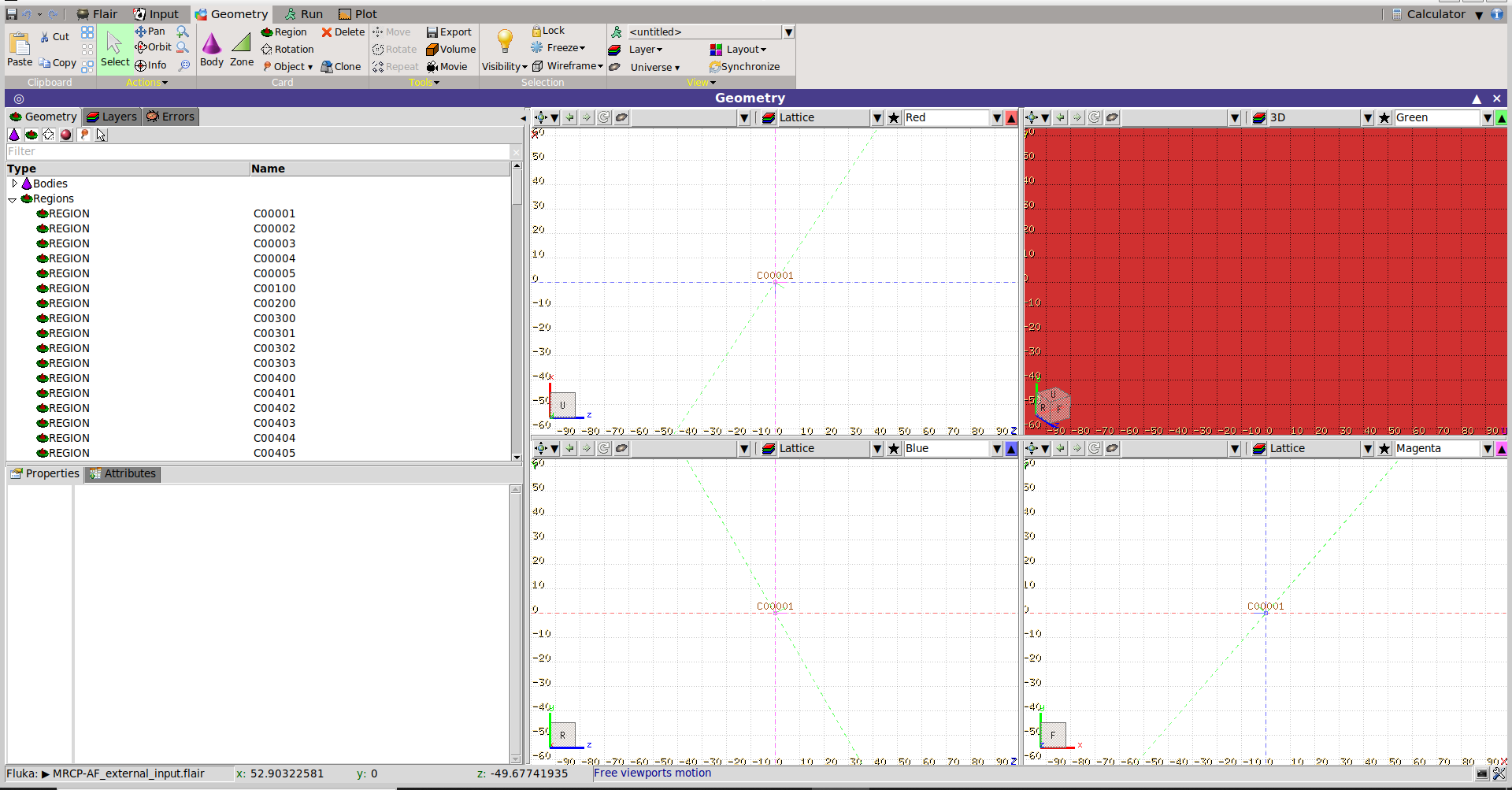
The phantom was successfully converted and the .inp file was generated. However, the visualisation does not work in Flair , nothing is displayed in the geometry viewer.
Has anyone experienced this issue or knows how to fix it?
Thank you for your questions and sorry for the delay in the answer.
No conversion is required for you to open and load the ICRP-145 phantom in a flair project.
This is the case since the adult male and female voxel-type reference computational phantoms released with ICRP-145 are in a TetGen format, which flair supports.
Therefore, if you want to import one of the phantom into your flair project, you will need to download its .ele and .node files, open flair, add a UMESH card and select the respective *.ele file. Then, switching to the geometry tab, flair will import the mesh and, finally, you should see the whole phantom displayed. For additional details, please refer to the manual page and to the UM-mini-guide.
Now, let me briefly comment on and further stress the topic discussed in the thread that you link.
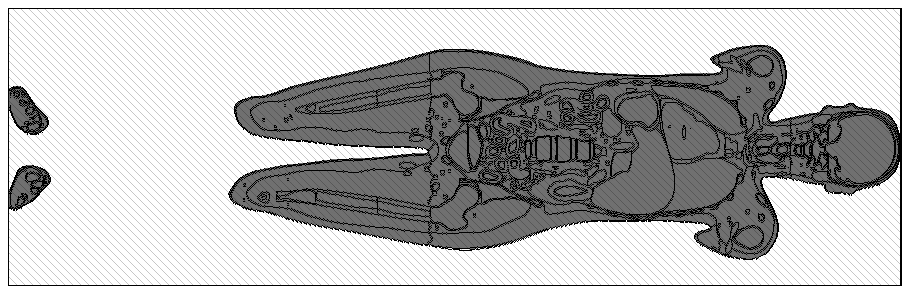
Once you load the phantom in your flair project, no materials will be assigned to the different regions (organs) that compose the phantom: all of them will be displayed with the default grey color (see the figure below).
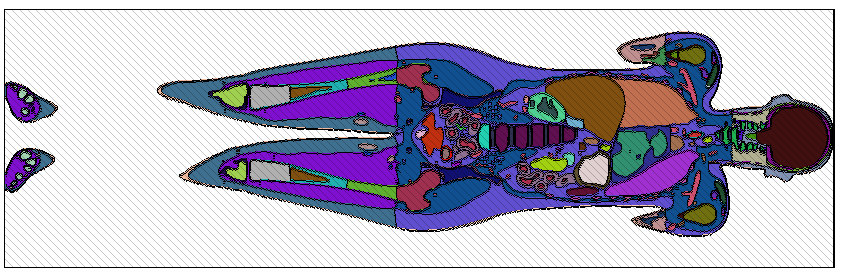
The reason is that flair does not automatically load the materials used in the mesh, but it is rather you, the user, who must manually set them. What the thread proposes is a workaround for this specific case. With flair, the PHITS input (MRCP-AF_external_input.pin) can be converted to the FLUKA format and then you can copy&paste the MATERIAL, and COMPOUND cards from the converted input file (which is exactly what you are attaching in your query) to your flair project and then assign the material to the different regions in your mesh.
The final result should be something like the figure below